How to Print Coloring Pages That Come Out Crisp
7 min read
Most printing problems with coloring pages come down to a handful of settings in the print dialog: the paper size, the scale, and those little headers your browser adds. Get them right once and every page comes out sharp, centered and ready for crayons. This guide covers those settings, plus paper choice, ink and printing a full class set.
Use the print buttons, not your browser's print command
Every coloring page on the site has two print buttons under the drawing. Each one builds a clean sheet holding nothing but the drawing, centered, with no menus or text. If you press Ctrl+P (Cmd+P on a Mac) instead, the browser prints the whole web page around the picture, and the drawing comes out smaller.
- Print the blank outline prints the black line drawing on its own. Use it for crayons, markers and paint. It prints the clean outline even if someone has already colored that page on screen.
- Print my picture prints whatever has been colored in the online studio, with the black lines laid over the top. If nothing has been colored yet, it looks the same as the blank outline.
In both cases the black lines go to the printer as vector artwork rather than a screenshot, so they stay sharp at any paper size. The colors in a printed picture come from the on-screen painting, which looks smooth at normal viewing distance.
Letter or A4: match the paper in the tray
In the US and Canada the standard sheet is Letter, 8.5 by 11 inches. Most other countries use A4, which is 210 by 297 mm: a little narrower and a little taller. The drawings are square and sit in the middle of the sheet with a margin of about half an inch (12 mm) all round, so they fit either size without cropping.
What matters is that the paper size in the print dialog matches the paper actually loaded. If the dialog says A4 and the tray holds Letter, some printers stop with a paper mismatch error and others print the drawing shifted or clipped. In Chrome and Edge the setting is under More settings > Paper size. In Firefox it is under More settings, and in Safari click Show Details.
Scale and margins: leave the defaults
The print sheet is already sized to fill the page inside its margins, so you don't need to enlarge it. Leave scale at Default in Chrome and Edge, or at 100% or Fit to page width in Firefox and Safari. Some browsers remember a custom scale from the last thing you printed, and a leftover 120% is the most common reason the top or sides of a drawing get cut off.
Keep margins on Default too. Choosing None asks the printer to print right to the paper's edge, which many home printers can't do, and the outer lines may disappear.
Portrait orientation
Because the drawings are square, they print at nearly the same size either way: about 7.5 inches across on Letter and a little less on A4. We still suggest portrait. It is the default, it stacks neatly with other worksheets, and it leaves blank space above and below the drawing where a child can write their name and the date.
Turn off headers and footers
Browsers like to add the page title, the date, a web address and a page number in tiny type along the edges. It is harmless, but it looks untidy on a picture headed for the fridge. Switch it off once and most browsers remember:
- Chrome and Edge: More settings, then uncheck Headers and footers.
- Firefox: More settings, then uncheck Print headers and footers.
- Safari: Show Details, then uncheck Print headers and footers.
You don't need to turn on Background graphics. Both print buttons produce a sheet that prints correctly without it.
Choosing paper
- Everyday copy paper (20 lb bond, about 75 gsm) is fine for crayons and colored pencils, and cheap enough for class sets. Markers may show through, so slip a scrap sheet underneath to protect the table.
- Slightly heavier paper (24 lb, about 90 gsm) has less show-through and a nicer feel, and still feeds like ordinary paper.
- Light cardstock (65 lb cover, about 176 gsm) is the sweet spot for markers, cut-out crafts, puppets, cards and anything going on display. It stands up to glue sticks and enthusiastic hands.
- Heavier cardstock (80 to 110 lb cover, about 216 to 300 gsm) buckles less under watercolor or poster paint. Check your printer's maximum paper weight first; many printers take card best through a rear or manual feed slot, one sheet at a time.
Even heavy card will ripple if it gets very wet. For painting, use a damp rather than dripping brush, tape the edges of the sheet to the table, and let it dry flat before peeling the tape off.
Saving ink and toner
A blank outline is mostly white paper, so it uses very little ink. For bigger print runs, a few settings help:
- Set Color to black and white or grayscale. On many inkjets this uses only the black cartridge, though some still mix in a little color; look in your printer's own settings for a black-ink-only option.
- Draft, economy or toner-save mode lightens everything. That is fine for scribbling practice, but lines can come out gray and broken, which makes shapes harder for young children to see. Print one test sheet before you print twenty.
- Print my picture on a page with a fully colored background uses a lot of color ink. To share a finished screen picture with family, use Save as PNG and send the file instead.
Printing for a whole class
The site's terms of use let you print pages in any quantity for classrooms, libraries, childcare and similar non-commercial settings, with no need to ask or credit us. Two efficient ways to do it:
- For a small group, set the Copies number in the print dialog and print straight from the page.
- For a large set, print one master copy at normal quality, then run it through the school photocopier at 100%. It is usually faster and cheaper per sheet. Always copy from the master, since a copy of a copy blurs the lines.
- If each child is choosing their own page, open each choice in its own browser tab and print one of each.
Keep a labeled folder of master copies of your class favorites. When you suddenly need twenty dinosaurs on a rainy afternoon, the photocopier is quicker than the computer. Our classroom activities guide has ideas for using them.
Troubleshooting
- The website printed around the drawing. The browser's own print command was used. Use Print the blank outline or Print my picture instead.
- Faint, gray or streaky lines. The lines themselves are solid black, so check for draft or economy mode, low black ink or toner, or a clogged print head. Most inkjets have a nozzle check and cleaning option in their settings or app.
- Edges cut off. Scale is set above 100%, margins are set to None, or the paper size doesn't match the paper in the tray.
- The drawing is tiny in the middle of the sheet. Scale is set below 100%, or Pages per sheet is set to 2 or more.
- An extra blank page comes out. Set the page range to page 1 only.
- A printed picture looks duller than on screen. That is normal: screens glow and paper reflects. Brighter white paper and your printer's best quality setting help for a keepsake.
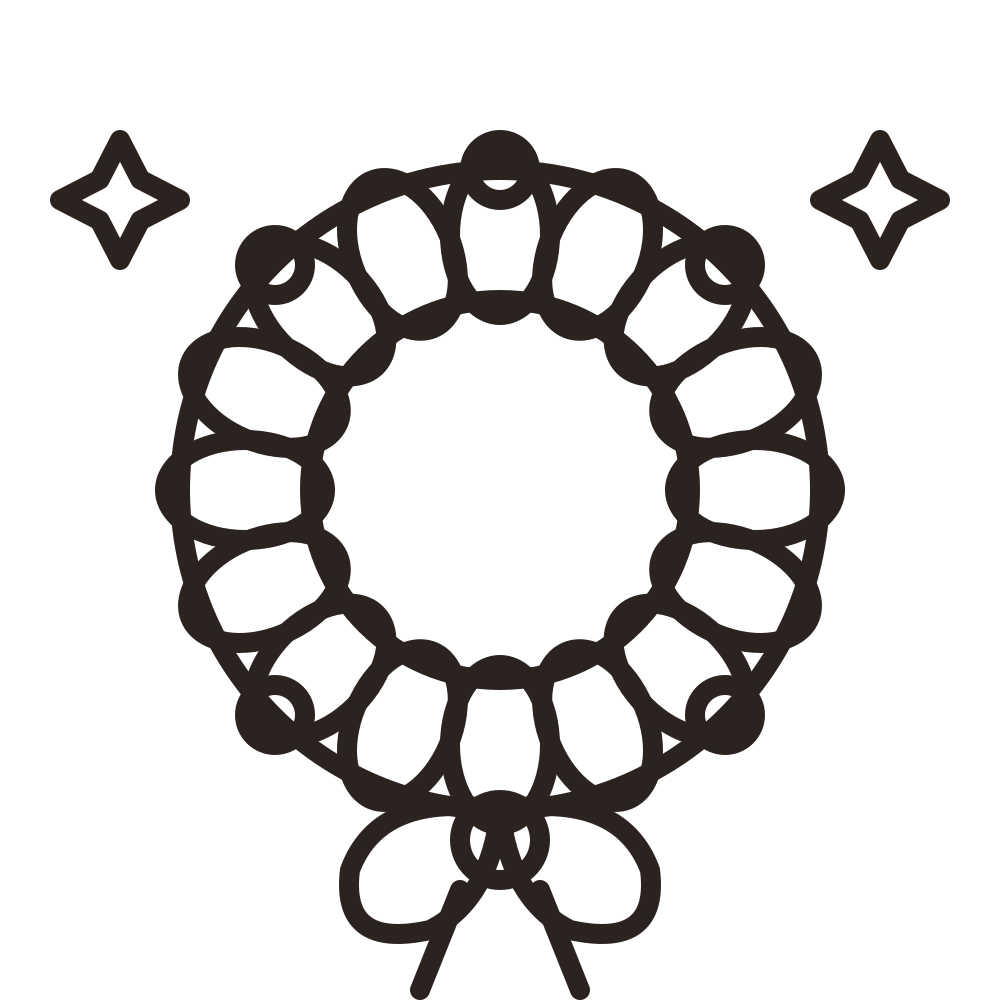
To test your settings, print one simple page and one with lots of small spaces side by side. If the thin gaps between the leaves of Christmas Wreath come out clean, everything else will too.