Using the Online Coloring Studio: A Parent's Walkthrough
6 min read
Every page on Crayon Corner can be colored right in the browser, on a computer, tablet or phone, with no app and no account. This walkthrough explains what each button does, a couple of things that surprise people (such as which button can't be undone), and how to set it up so a small child can color on a tablet without needing help every two minutes.
Finding your way around
Open any coloring page and the studio is at the top. The tool buttons sit above the drawing, the action buttons sit below it, and the color palette is beside the drawing on a wide screen or underneath it on a phone. When a page first opens you may see "Getting the page ready" for a moment while the drawing is prepared.
Picking a color
The palette holds 48 crayon colors in eight families: reds and pinks, oranges and yellows, greens, blues, purples, skin tones and browns, brights, and neutrals (including white). Each family runs from lightest to darkest, so finding a paler or deeper version of a color is a matter of moving along the row. Tap a swatch to choose it; a check mark appears on it, and the large circle at the top of the palette shows the color you are using.
For a color that isn't in the box, use the custom color picker at the top of the palette, the bar labeled "Any color you like." It opens your device's own color chooser. The last eight colors you used appear in a Recently used row, which makes it easy to get back to an exact custom shade, and that row is remembered from page to page on the same device.
Fill or brush
The studio starts with the Fill tool selected. It works like a paint bucket: tap inside any closed shape and the whole shape fills with color, right up to the black lines with no white gaps at the edges. Tap a filled shape again with a different color to change it, or tap the empty space around the drawing to color the background.
Brush paints wherever your finger or mouse moves. Use it for stripes, spots, shading or anything the drawing doesn't have. The brush is not stopped by the black lines, so color can run into the next shape, although the lines themselves always stay visible on top. If you brush a pattern onto part of a shape and then switch to Fill, a tap fills the parts of that shape that are still blank.
When Brush or the Eraser is selected, four sizes appear as dots beside the tool buttons: Fine, Medium (selected at first), Thick and Wide. Fine is for small details; Wide covers a big background in a few strokes.
Eraser, Undo and Redo
The Eraser takes color off and comes in the same four sizes. It never removes the black lines, so a child can't erase the drawing itself.
Undo steps back one action at a time: a single fill, a single brush stroke (from touching down to lifting off), or one press of Surprise me. It can step all the way back to a blank page, and it still works after you close the page and come back. Redo puts an undone step back, as long as nothing new has been colored in between. On a keyboard, Ctrl+Z undoes and Ctrl+Shift+Z or Ctrl+Y redoes; on a Mac, use Cmd instead of Ctrl.
Surprise me and Start over
Surprise me gives every shape that is still blank its own random color, all at once. It leaves shapes you have already colored alone and doesn't touch the background, and it picks from the brighter and middle tones of the palette rather than the darkest ones. Don't like the result? Press Undo and try again; each press gives a different mix.
It is handy for a child who feels overwhelmed by a page with lots of small parts, as a starting point to recolor bit by bit, or as a conversation starter: which colors would you change?
Start over wipes all the color off and returns the page to its blank outline.
Start over cannot be undone. It clears the Undo and Redo history along with the color. If a younger sibling loves pressing buttons, it is worth pointing this one out to older children before they spend half an hour on a picture.
Saving and printing a finished picture
- Save as PNG downloads the picture as an image file, 2000 by 2000 pixels on a white background, named after the page (for example, sunny-daisy.png). That is big enough to print well or send to family. On a computer it goes to your downloads folder; on phones and tablets, the browser may ask where to save it or put it in your files app.
- Print my picture prints the colored version on a clean sheet.
- Print the blank outline prints the plain drawing for crayons, even if the page has been colored on screen.
Our printing guide covers paper size, headers and footers, and what to do if the edges come out cut off.
Where the picture is kept
The studio saves each picture automatically as you color, within about a second of each change. Close the tab, come back tomorrow on the same device in the same browser, and the picture is waiting. Each page is saved separately, so a child can have several pictures on the go.
The picture is stored only in that browser on that device. Nothing is uploaded and there is no account, which means:
- A different device, or a different browser on the same device, starts with a blank page.
- Clearing your browsing data, cookies or site data erases saved pictures.
- A private or incognito window forgets everything once it is closed.
- On a shared family computer, everyone coloring the same page in the same browser sees the same picture.
If a picture matters, use Save as PNG before clearing your browser or handing the tablet on.
Tips for small children on tablets
- Start with Fill only. Tapping a shape and watching it fill is the most satisfying thing for a two- or three-year-old. Introduce the brush once they have the hang of it.
- Choose pages with big shapes. Small spaces are hard targets for a fingertip. Pages marked easy, or with clearly separate parts like the ones below, work best on a phone.
- Lay the tablet flat or use a stand. A palm resting on the screen can register as a tap and fill a shape by accident. That is what Undo is for, and a chunky stylus helps too.
- Dragging on the drawing won't scroll the page, so brush strokes don't jump away. To scroll, swipe on the space outside the drawing.
- Offer a smaller palette. Forty-eight colors is a lot. Try "pick from the blues today" to keep choices manageable.
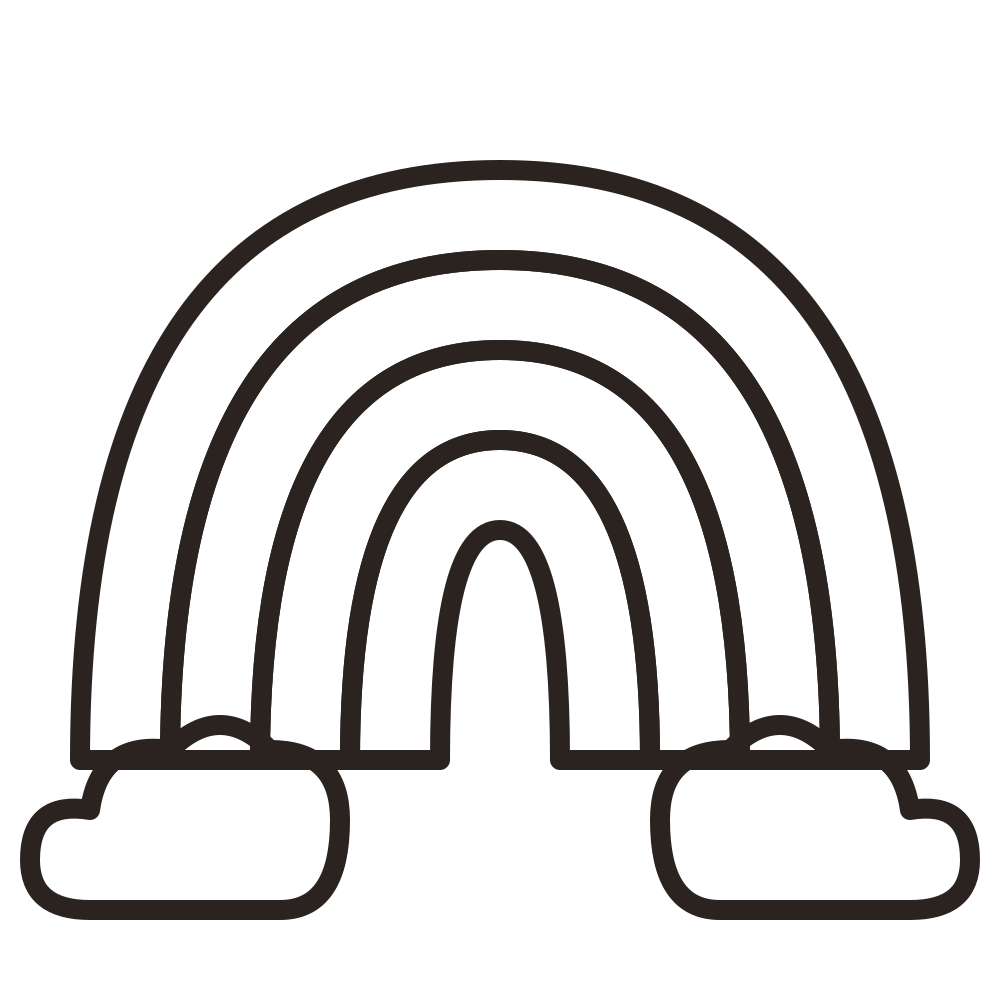
Rainbow and Clouds
Easy
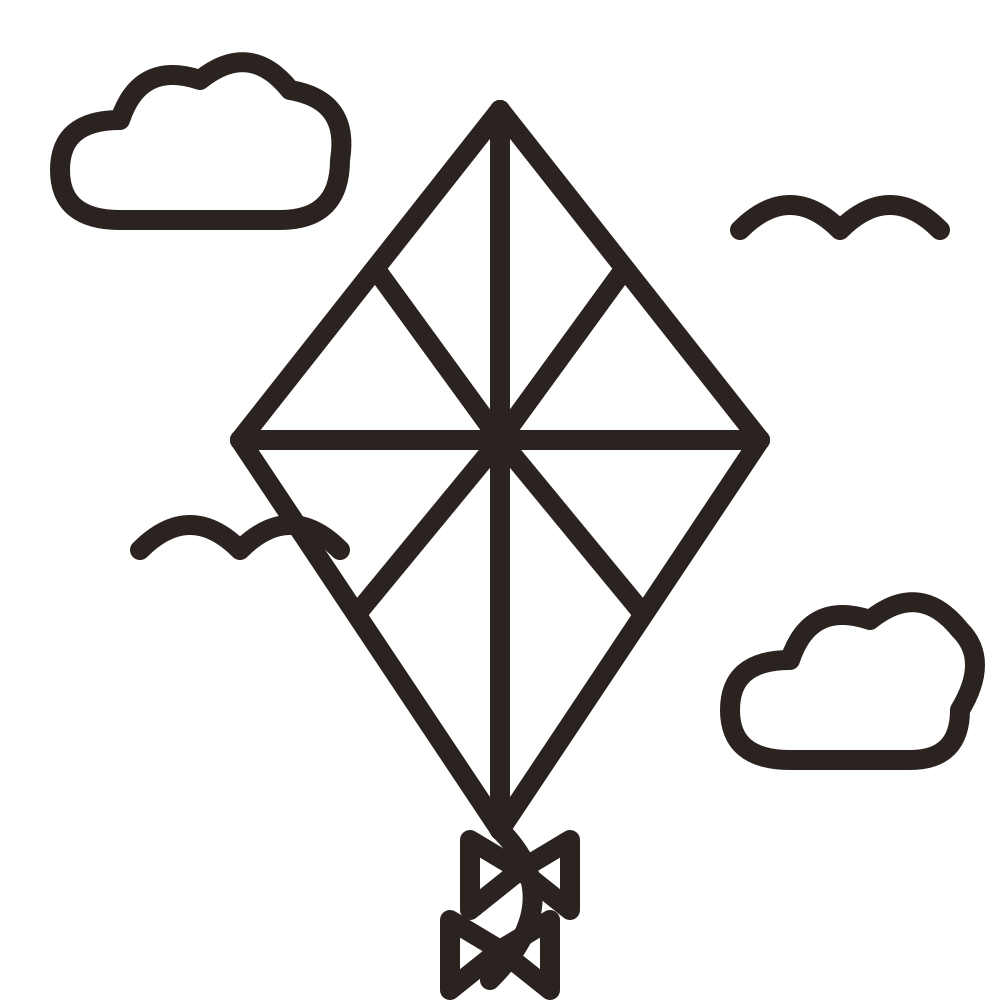
Kite in the Sky
Medium
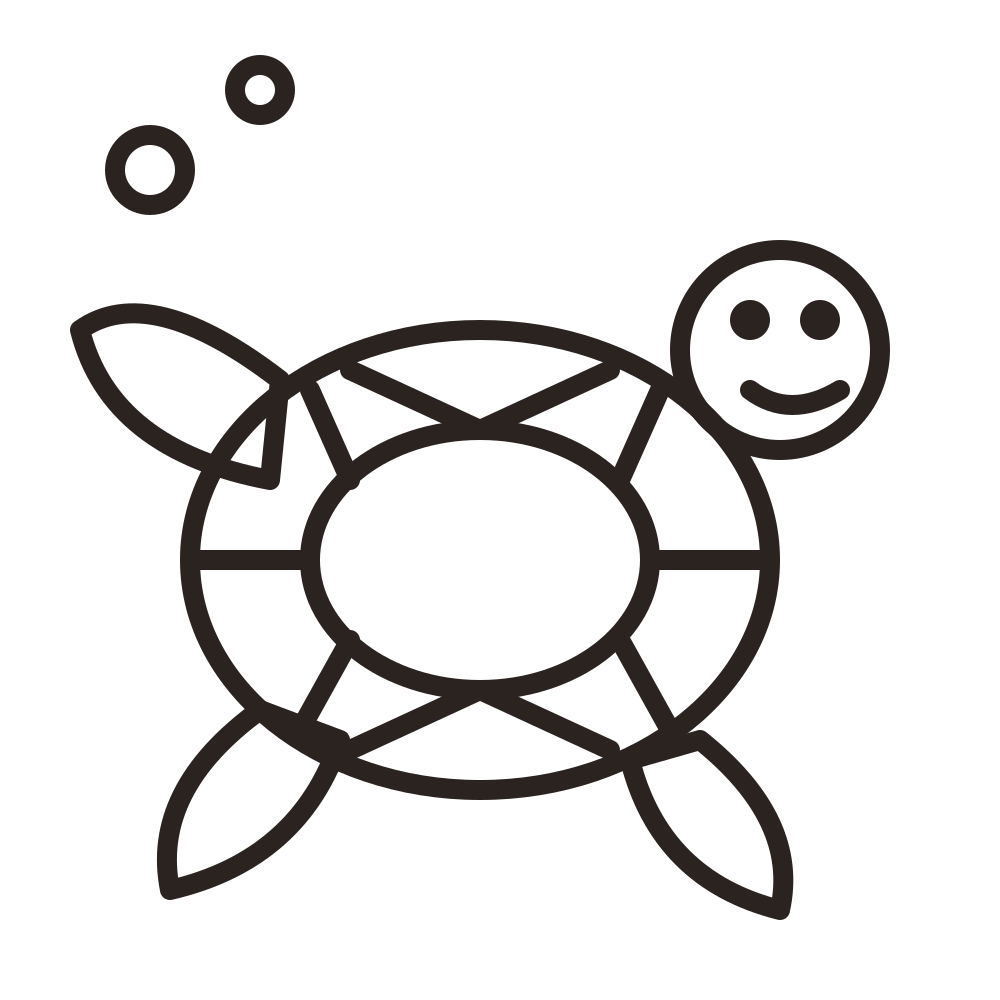
Sea Turtle
Medium
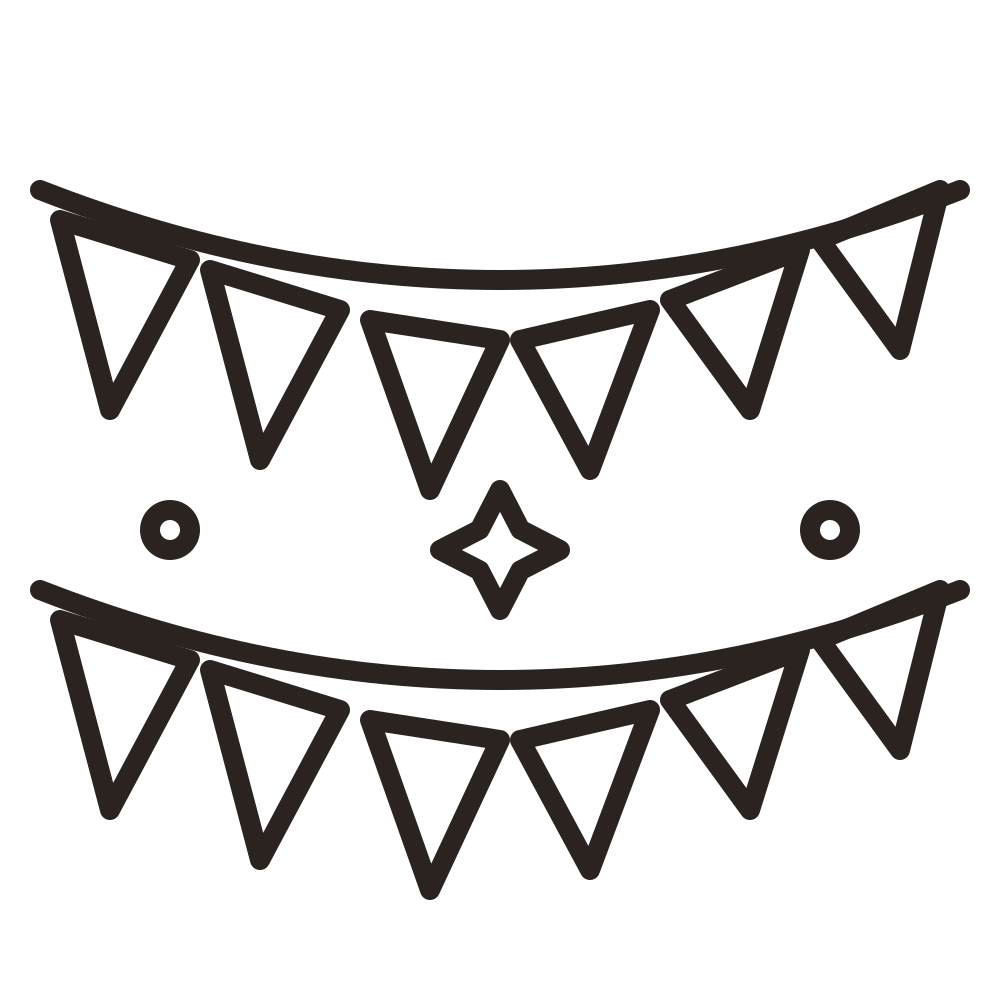
Birthday Bunting
Easy
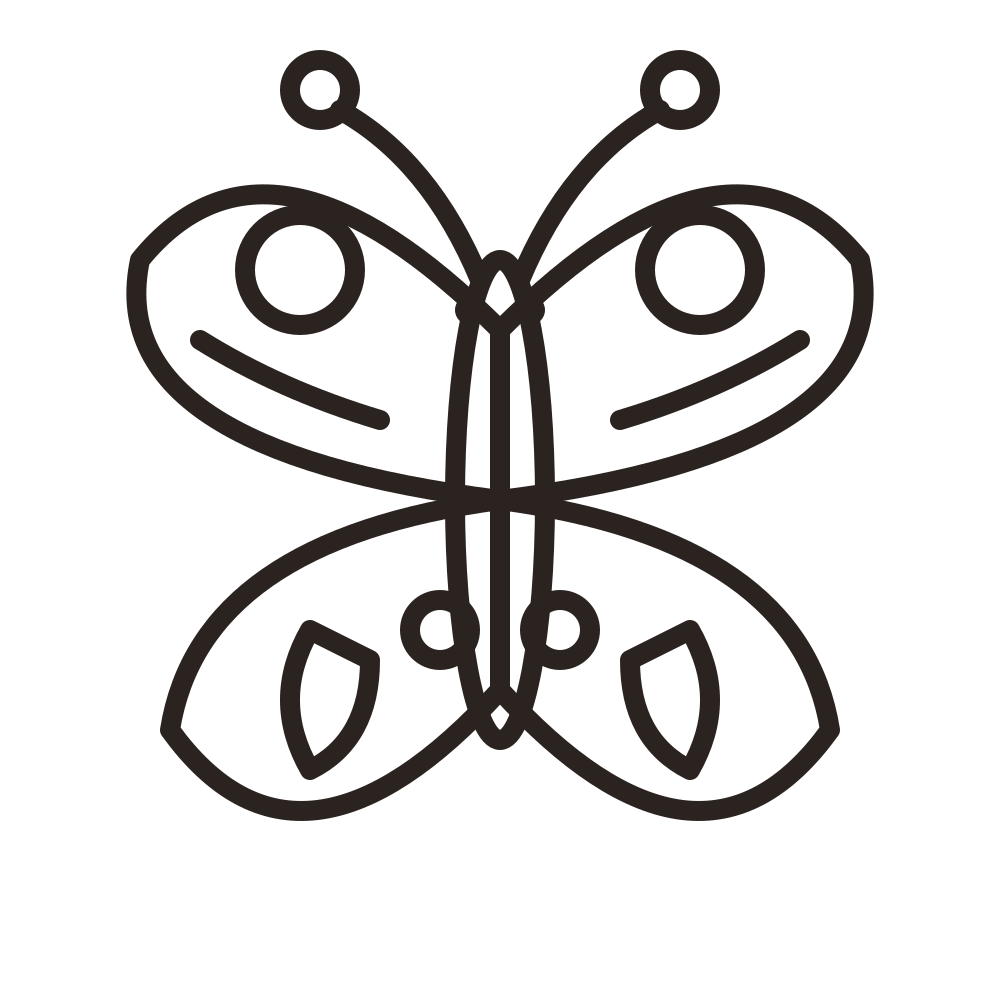
Patterned Wings
Medium
Tips for parents
- Screen coloring and paper coloring are different activities. Tapping a fill bucket gives a quick, satisfying result but works the hand far less than a crayon does, so mix the two. Our guide to coloring and fine motor skills explains the difference.
- Try a color plan on screen, then print the blank outline and copy it with crayons. Older children enjoy comparing the two.
- Use a finished screen picture as a card: save the PNG and print it on cardstock, or send it to a grandparent.
- If your browser can't run the studio, the page says so, and the printable outline still works.